 +
+ 
.
For WordPress bloggers with iPhones, the iPhone WordPress application is close to the best gift since receiving a Nintendo Entertainment System for Christmas in 1983. The application is solid, allows tags and categories, posts pictures direct from the phone, etc. Awesome!
But what if you want to post pics from your Flickr stream? What if you’re shooting with another camera and want to post high quality photos not taken with the iPhone crackerjack cam? Here’s the instructions, including detailed pictures, on how I get photos from Flickr in to an iPhone WordPress blog post:
note: you can ignore 1/2 of the steps if you already know how to use WordPress and Exposure on your iPhone.
1. Get the WordPress app (Utilities section of the App Store).
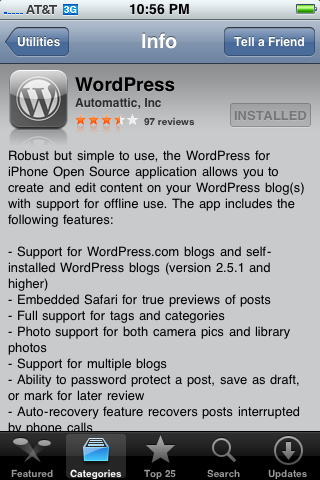
2. Get the Exposure app (Social Networking section of the App Store).
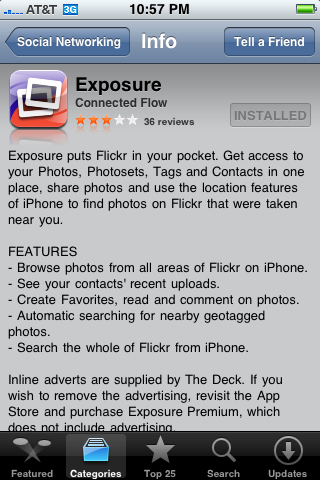
3. Open Exposure and locate the desired picture or pictures in your photostream, as seen below.
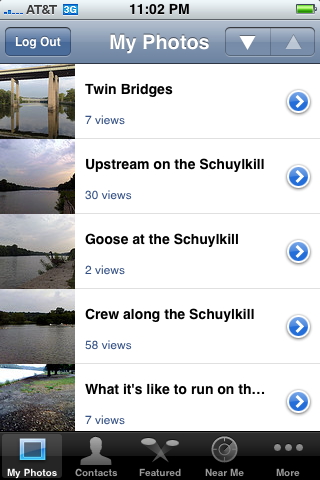
4. Click the small right-pointing arrow, you will now see the image below.

5. Click the small arrow in the top right corner to see your Share Photo options.

6. Open in Safari, and Safari will open, as seen below.

7. To save the image, press and hold your fingertip on the image. Selecting Save Image will save the image to your Camera Roll on the iPhone. You now have your image.

8. Open WordPress and create a new blog post.
9. Select the Photos tab and click the “+” button at the bottom right.

10. Choose to Add Photo from Library.

11. Click the Save button in the top right – When you post, your photo will be appended at the end of your post (below image was pulled from Exposure/Flickr/Camera Roll exactly as described above).

You gave me one reason too much for the iPhone :-)
now it is too late! i have one like You guys. it really cool!
i just tried blogging with it and hardly can believe… it works well.
Awesome How to. I use flicker often and using it on iPhone was cumbersone this will help me a lot. thanks